Reviewing a prototype
You received a prototype link. Here’s everything you need to review it and leave feedback, no setup required.
Opening the link
Click the link. If you’re already signed in to your Artor org, the prototype opens immediately. If not, you’ll see a sign-in page. Sign in with your org account and you’ll land straight on the prototype.
If you see a “request access” page, the prototype has been closed by its owner. Use the form on that page to notify them, or reach out directly.
A public link from your organization recognizes you too, as long as you’re signed in: you review as yourself, not as a guest. If you can’t open the prototype’s Space, your organization’s setting can still give you the same widget and every thread, without guests’ email addresses. See Teammates on a shared link.
No Artor account?
If you were sent a public link, it opens with no sign-in at all. You’ll see the running prototype, and the review widget too if the link’s comment settings allow guest feedback. Skip ahead to Reviewing as a guest for what that’s like.
What you’re looking at
The prototype opens and runs normally, with an Artor review widget layered on top. The prototype behaves like a real app: click through it, scroll, fill in forms. What you’re seeing is the version the link points to. Use demo information when filling in forms: a prototype can be connected to services that perform real actions.
The toolbar
The widget shows up as a small floating toolbar in the corner of the page: comment, show/hide comments, settings, and a chevron to tuck the toolbar out of the way. Hover any icon for a moment to see what it does and its keyboard shortcut. Click the chevron (or press M) to minimize the toolbar down to a single pill; click it again to bring the full toolbar back. Your comment pins stay visible the whole time; minimizing only tucks away the toolbar itself.
Pause animations
Freeze a moving prototype so you can review a particular moment and pin feedback to it.
- Click Pause animations in the toolbar, or press P while you’re not typing.
- Leave your comment on the paused view.
- Click Resume animations, or press P again, to continue.
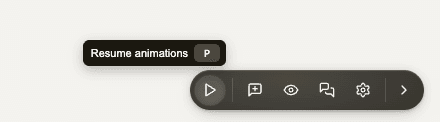
The toolbar shows Resume animations while the page is paused. You can still scroll, select text and leave comments. Videos and audio stay paused until you play them again. Some custom animations may keep running.
Leaving a comment
- Open the Comment tool in the review widget.
- Click the element you want to comment on: a button, a heading, a card.
- A composer opens. Type your feedback and press Enter or the send button.
The Comment tool stays on after you send, so you can leave several comments in a row. Click it again or press C to turn it off.
While the tool is on, clicking the prototype only places comments: buttons don’t press, links don’t open and toggles don’t flip, so you can comment on any control without setting it off. The widget’s own controls keep working. If you click away from a comment you’ve started typing, the box shakes instead of closing; click away again to discard it. An empty comment box closes on the first click.

Comments stay with the element and version you’re reviewing. Open a pin to read and reply in the Comment thread panel.
You can scroll the page while you write a comment without losing what you’ve typed.
The pin stays attached as you scroll or resize the page, and finds the same element the next time the page loads (see How a pin finds its element). Teammates with access to this version can see the feedback. Comments stay with this version; they don’t move to the next one.
Commenting on copy rather than a component? Select the text instead: a small Comment button appears next to the selection, and the comment anchors to that exact quote, highlighted while its thread is open or while you point at its pin or its row in the list. See Commenting on selected text.
Tips for useful feedback:
- Click the specific element you mean; the anchor is part of the context.
- Need to press a button or follow a link while the comment tool is on? Hold Option on a Mac (Ctrl on Windows and Linux) and click. The click goes to the page instead of placing a comment (the hover chip reminds you on anything clickable). On a Mac, some browsers download a link on Option+click, so turn the tool off with C to follow a link.
- Be specific: “the button label is unclear” is more actionable than “something feels off here.”
- Screenshots aren’t needed; the comment ties itself to the exact version and element.
- In the composer, Enter sends (Shift+Enter for a new line) and Esc cancels. Each press of Esc closes one thing, the top one first, and what you type never triggers the prototype’s own keyboard shortcuts.
- Type
@to mention a teammate. A picker opens (Arrow keys, Enter to pick, Esc to close), and the person you choose may get an email depending on their notification settings. See Mentioning a teammate.
Resolving feedback
When a comment has been dealt with, open its thread and hit Resolve; Reopen puts it back
if the issue came back. See Resolving a thread for what
resolved threads look like and who can resolve. You can do the same from the terminal with
artor comments resolve.
Reading what’s there
Open a pin to read its thread, then use the reply box to continue the discussion. You can edit or delete your own messages. Teammates may receive reply emails depending on their notification settings.
- An unread dot marks new activity. It is remembered only in this browser.
- AI ignore leaves a thread for a human when an agent works through feedback.
- Copy details for AI, in ···, copies one thread for a manual handoff. For an ongoing review, your coding agent can read threads directly through the Artor CLI.
You can also open the prototype in the dashboard to filter, reply to, and resolve its threads across versions. If access is turned off, comments remain readable, but replying and status changes are blocked until access is restored.
Reviewing as a guest
A public link may allow you to comment without an account. Choose Add a comment or press C, then click an element or select text. Type your feedback and press Enter. Choose Done commenting to return to using the prototype.
The first comment may ask for your name, or your name and email, in the same card as the comment: fill in the fields above the comment box, type your feedback, and press Enter or the send button once. If something is missing, nothing is sent and the missing field is marked; Enter in the name or email field moves to the next field. If the card closes before your name is saved (a click outside it, Esc, or after a save that failed), your name and email are still there the next time you open one on the same page; they’re kept only until you reload and are never saved in your browser. Later comments show your name at the top of the card instead, or Anonymous guest on an anonymous link. You can’t change your name from the prototype yet. These details aren’t verified, and Artor won’t email you. An anonymous link lets you start without entering either.
You see only threads you started, including the team’s replies there. Other guests’ notes and the team’s separate discussions aren’t shown to you.
You can reply in your own threads and edit or delete your own messages. In the list of threads, the ··· on a thread edits it (your first message, ready to edit) or deletes it, with Undo until you leave the list. Edit is offered only on a thread from this screen; a thread from another screen offers Delete only. Resolving, mentions, AI ignore, copying thread links, and marking threads unread are available only to members.
Stay in the same browser to return to your notes. Clearing cookies or switching devices can make you appear as a new guest. If the link moves to a new version, the earlier notes stay on the previous version for the team to review.
If commenting is turned off during your review, the widget becomes read-only and explains why.
Navigating between versions
The dashboard shows the full version history for each prototype. If you’ve been sent a link
to latest, you’ll see the newest version (the highest-numbered open one, see
What happens to latest). For feedback on a particular build,
ask for a specific version. Publishing a new numbered version keeps the earlier version
available. Replacing an existing version in overwrite mode is an exception; see
Deployments & versions.
To compare versions: open the version list in the dashboard and switch between them. Each version has its own independent set of comments.
What to do next
- The publish → review → iterate loop: how the full cycle works
- Comments: the full comment reference
- Access control: what to do if you hit a “request access” page